How to use Inventory Forecasting with AI
Odoo Inventory Forecasting - User Guide
Requirements:
- Odoo Versions Supported: 12, 13, 14, 15, 16, 17, 18, 19 (Enterprise or Community)
- Inventory forecasting module installed in your Odoo
- Sales history data should be present
Steps:
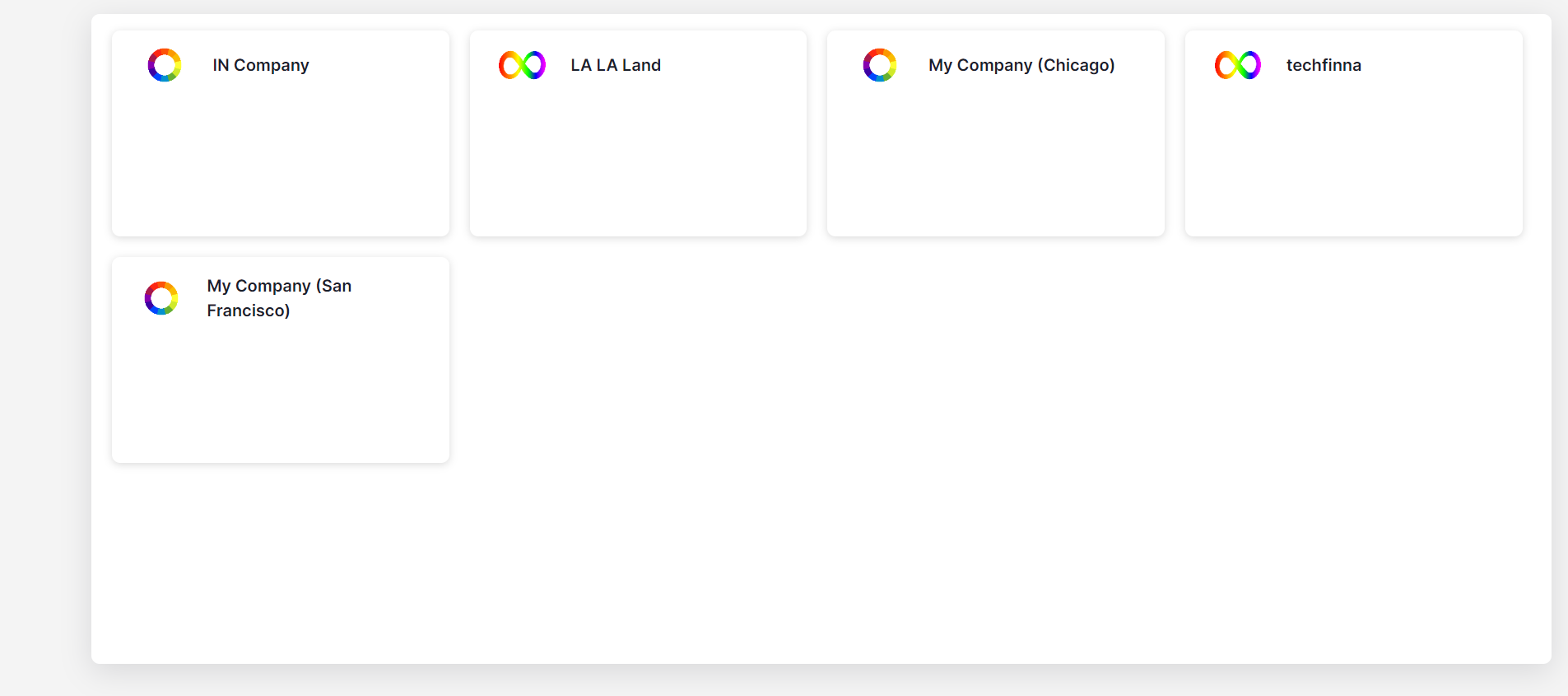
1. Choose Marketplace
2. Set up analytics setting
| Setting | What to do | Example |
|---|---|---|
Select Vendor Creates vendor-specific report | Open the vendor dropdown and pick the vendor you want to analyze. Note: Choosing multiple vendors prevents RFQ creation Tip: Choose the vendor you purchase from most frequently | 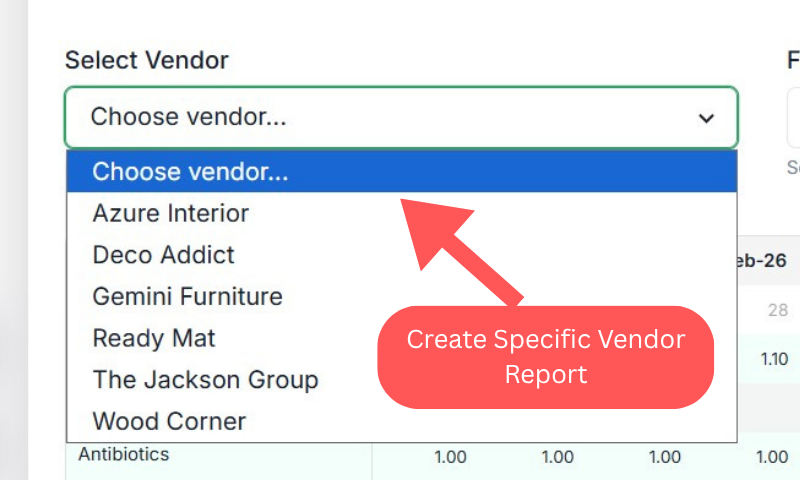 |
Forecast Month Defines the forecasting window | Choose the month range you want to forecast. Example: Dec 2025 → May 2026 | 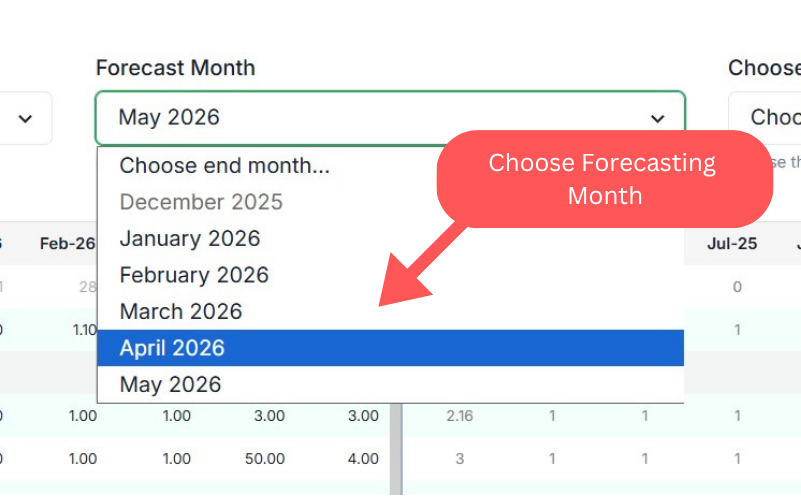 |
Buffer Safety multiplier | Buffer slightly inflates demand to protect against stockouts. Keep Buffer small unless you have frequent stockouts. Use Seasonality for predictable peaks (festivals, summer, etc.). | 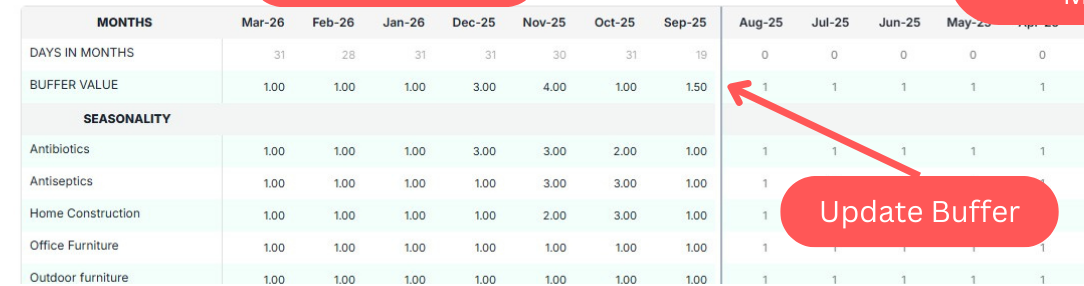 |
Seasonality Month-wise adjustment | Seasonality increases or decreases demand for a category in specific months. | 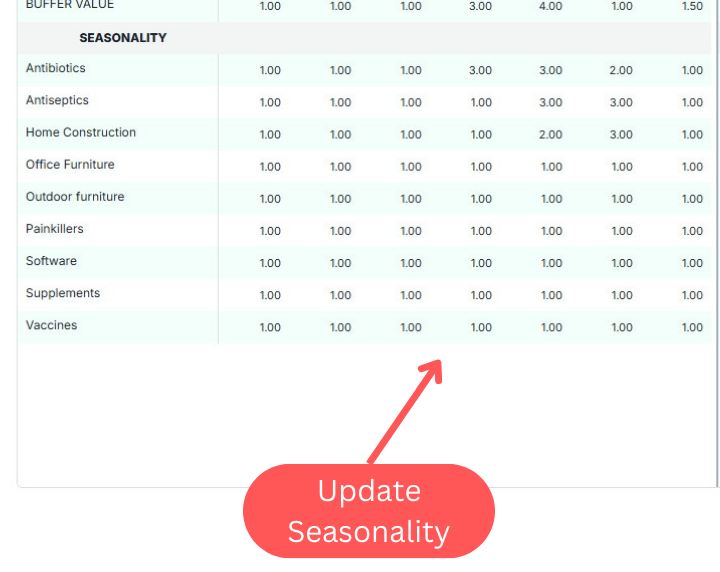 |
3. Analytics Screen Layout (3 Sections)
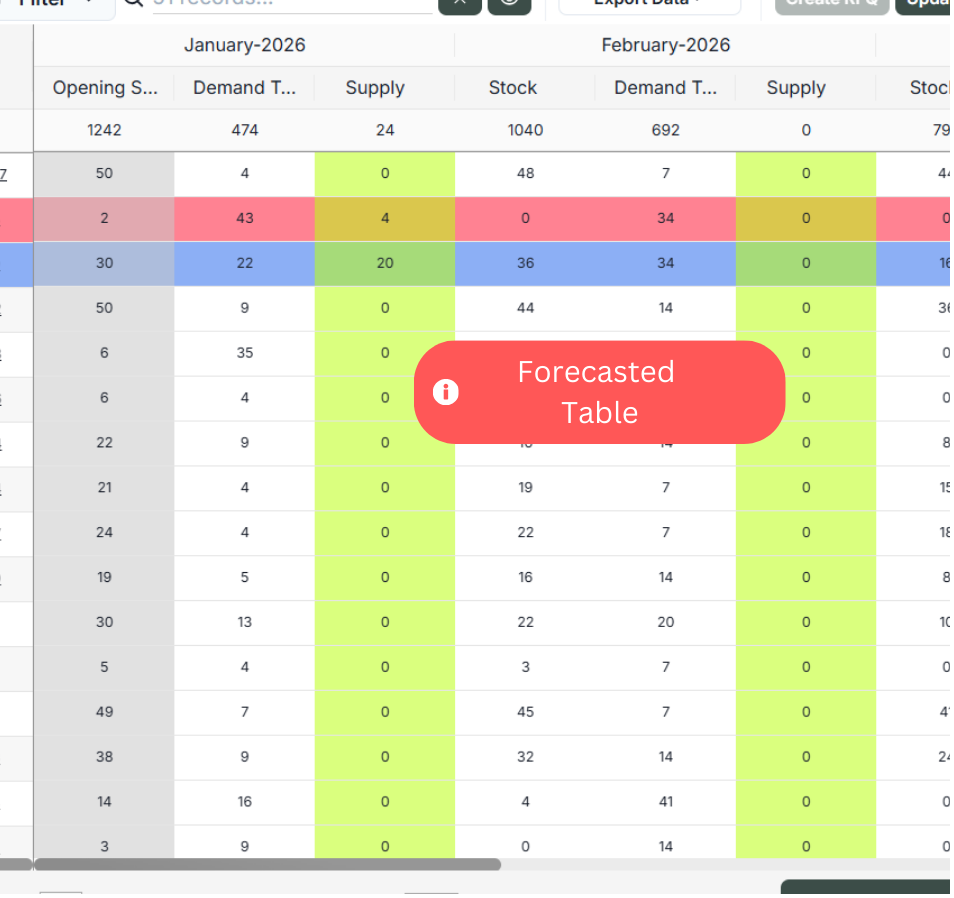
The screen is divided into History (left), Main Table (center), and Forecasted Table (right).
Section 1
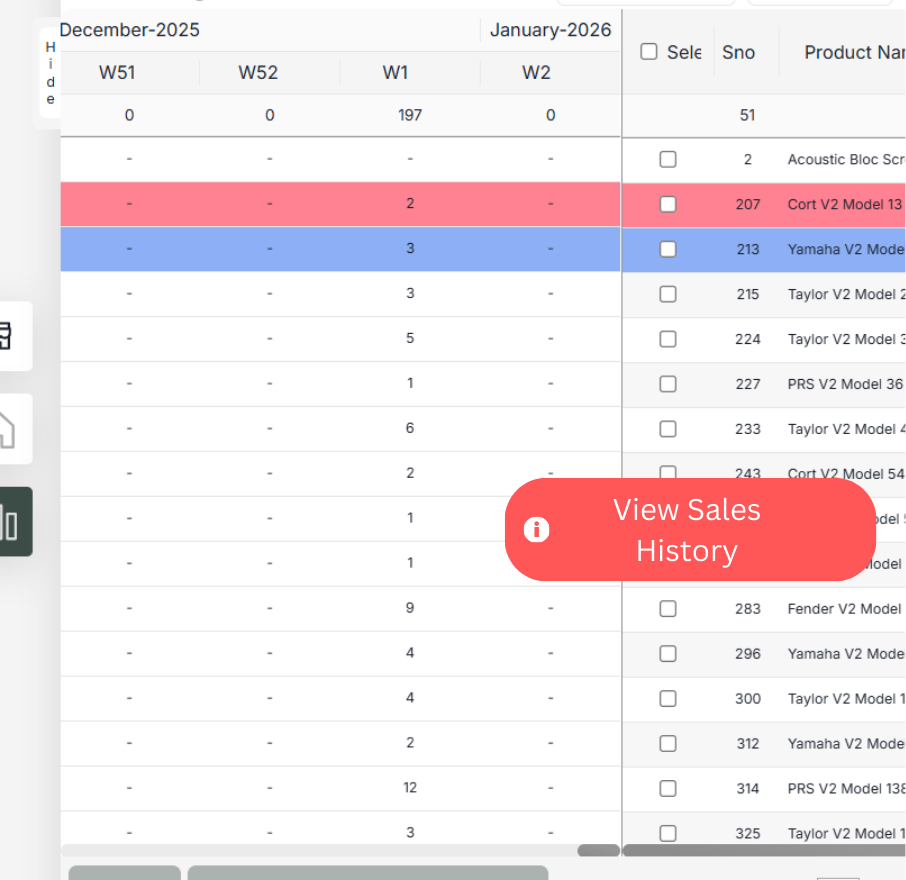
History
Shows historical sales context that feeds forecasting.
Section 2
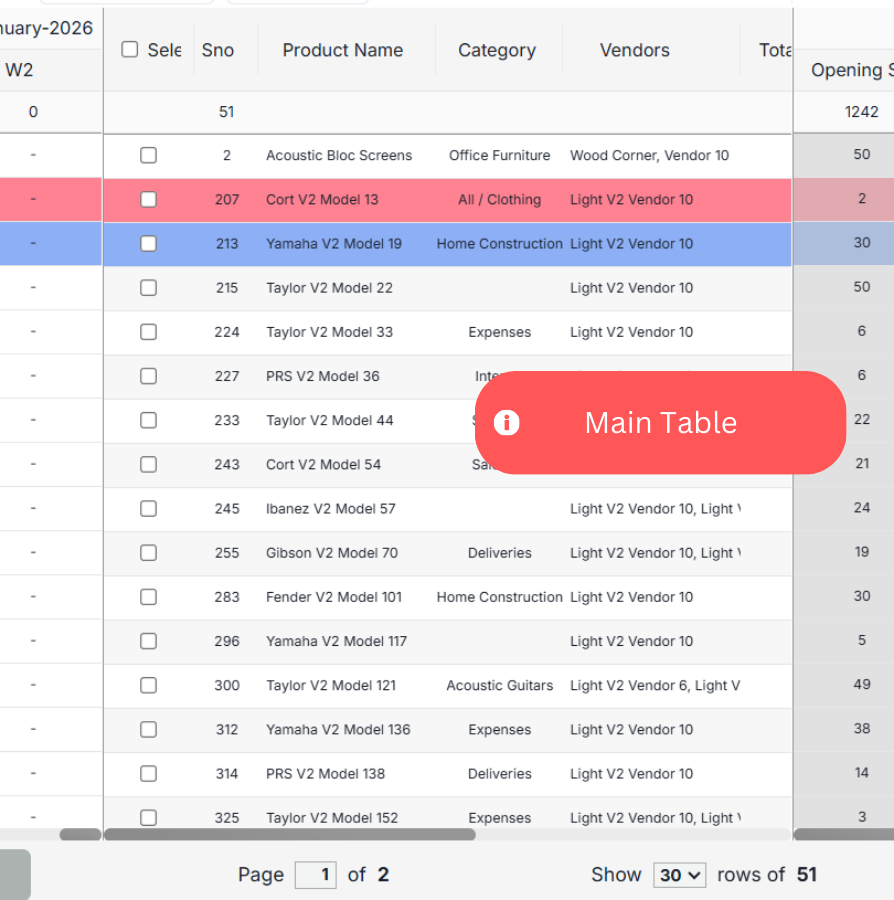
Main Table
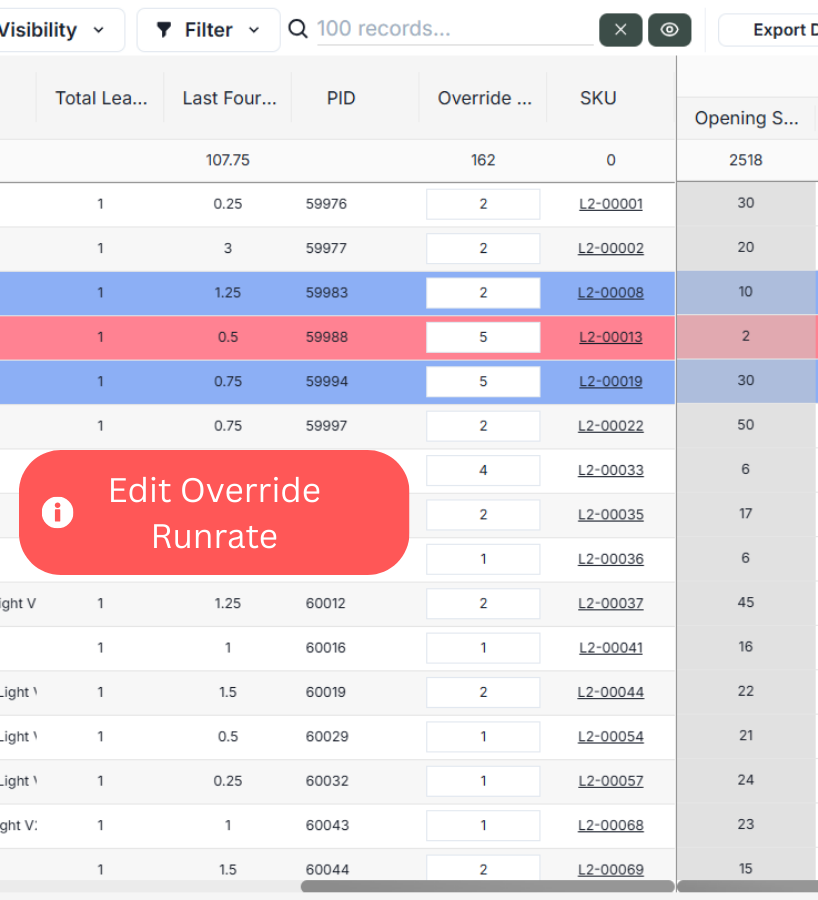
Lists products (Name, Category, Last 4 Weeks Avg, PID, Override Run Rate, SKU, etc.).
Section 3
Forecasted Table
Shows month-wise forecasting result including Demand, Supply, and Stock calculations.
Main Table — Column Meaning
Quick reference for the key fields you’ll see in the center table.
| Column | Meaning | Notes |
|---|---|---|
| Product Name | The product being forecasted. | Helps identify the SKU quickly. |
| Category | Product category used for grouping & filters. | Useful for seasonal patterns. |
| Last 4 Weeks Avg | Recent sales average used as a baseline. | Feeds forecasting logic. |
| PID | Product ID. | Internal identifier. |
| Override Run Rate | A manual value you can change to override the system’s sales average. | Use this to “play around” and see how forecast changes. |
| SKU | Stock Keeping Unit code. | Matches your inventory label. |
| Opening Stock | Imported directly from Odoo Inventory. | Starting stock for the month. |
| Supply | Imported from Odoo (incoming supply). | Used to compute projected stock. |
Editing Override Run Rate
Changing Override Run Rate updates forecasting calculations for that product.
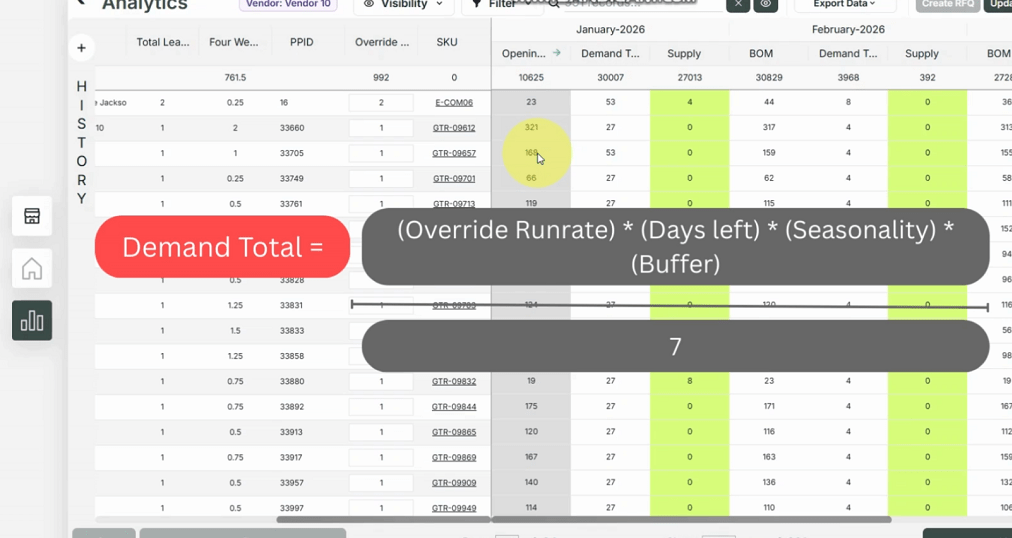
How Demand Total is Calculated
Demand Total depends on Override Run Rate, Days Left, Seasonality, and Buffer.
Filters & Controls
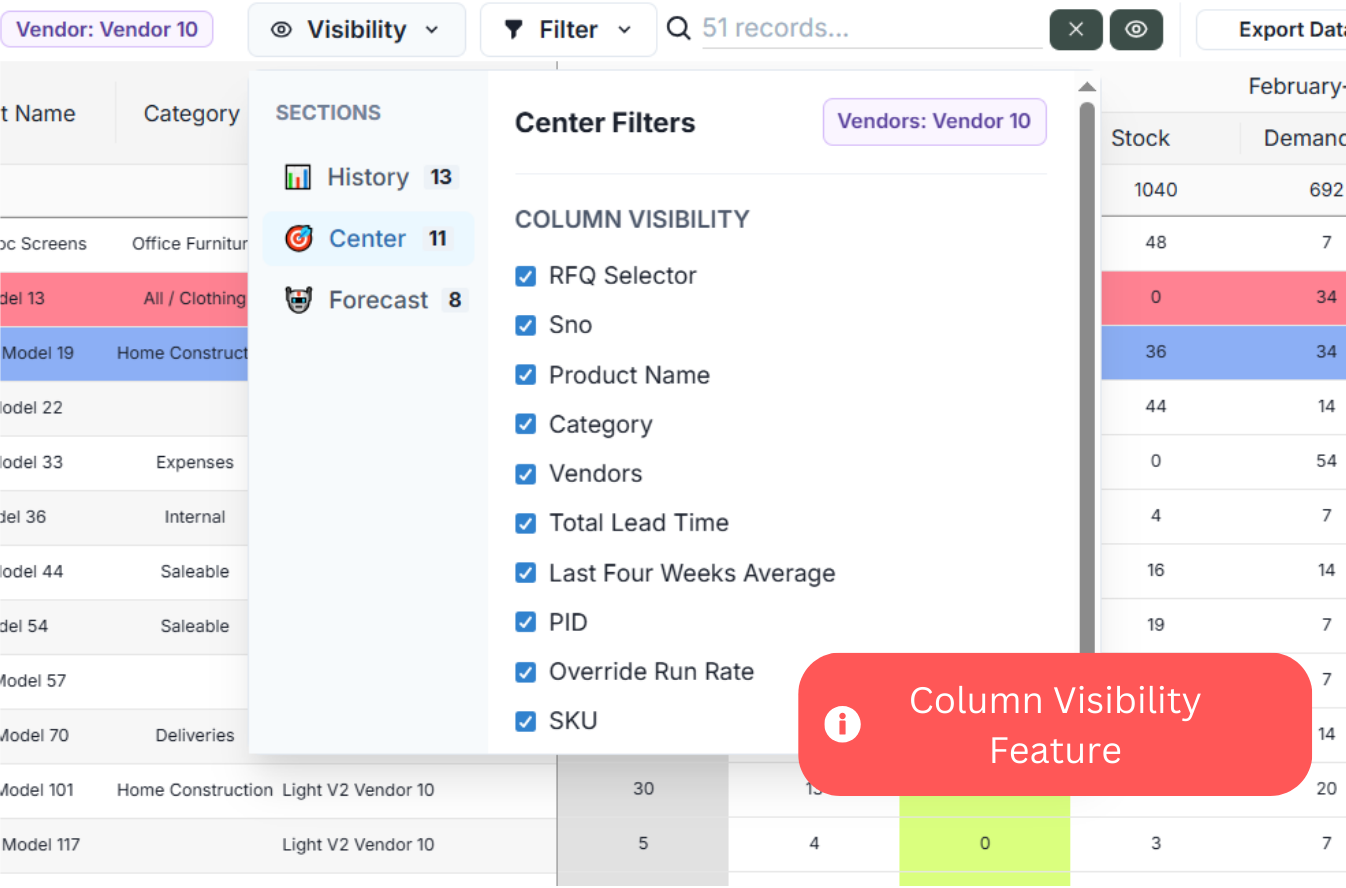
Use visibility, filters, search, and pagination to quickly focus on the right products.
Column Visibility
Choose which columns you want to show/hide in the table.
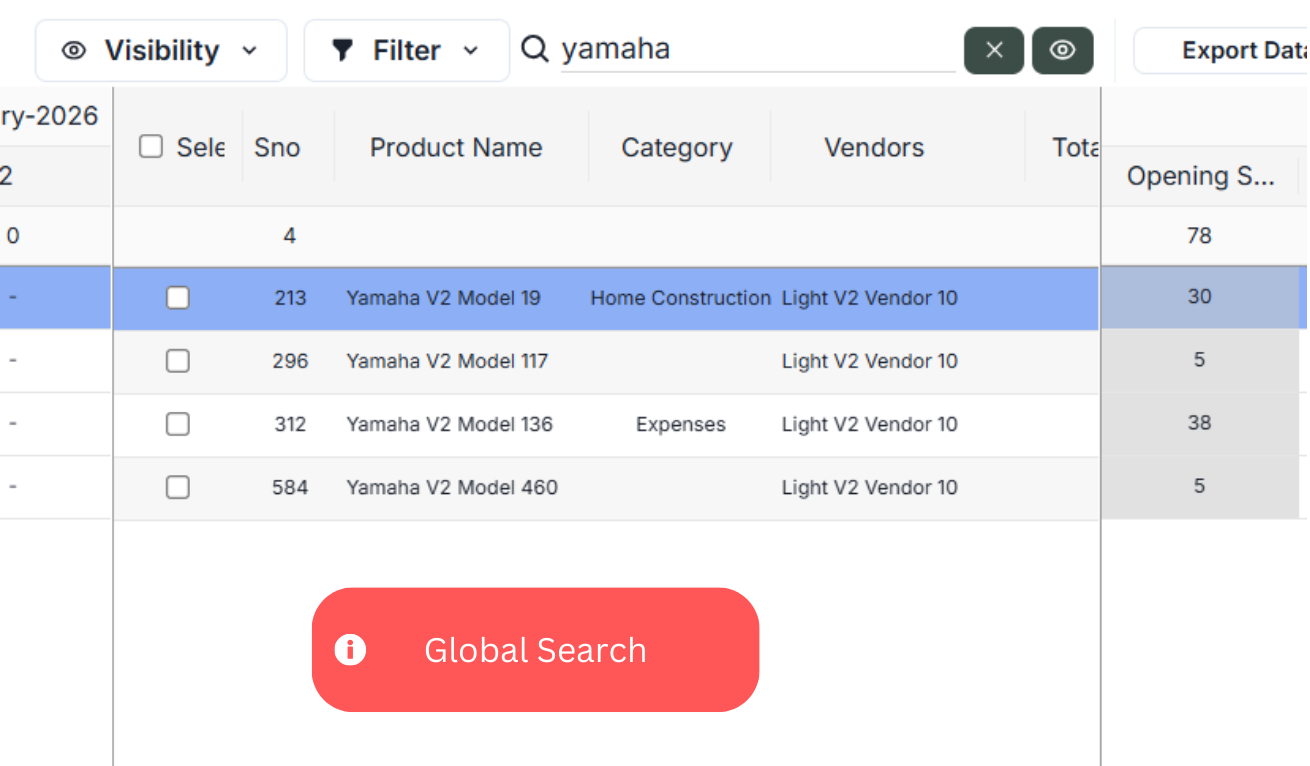
Global Search
Search by product name, SKU, etc. (example search: “yamaha”).
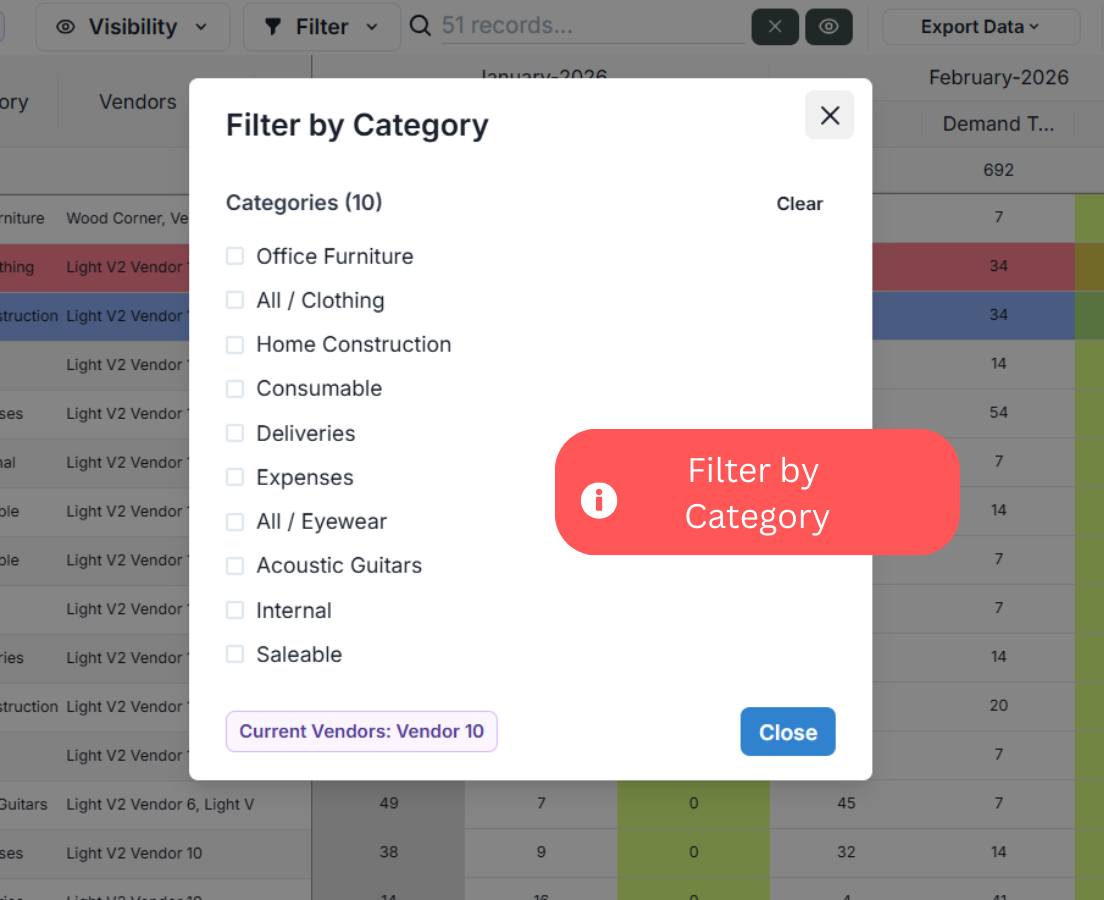
Filter by Category
Narrow down the table by selecting specific categories.
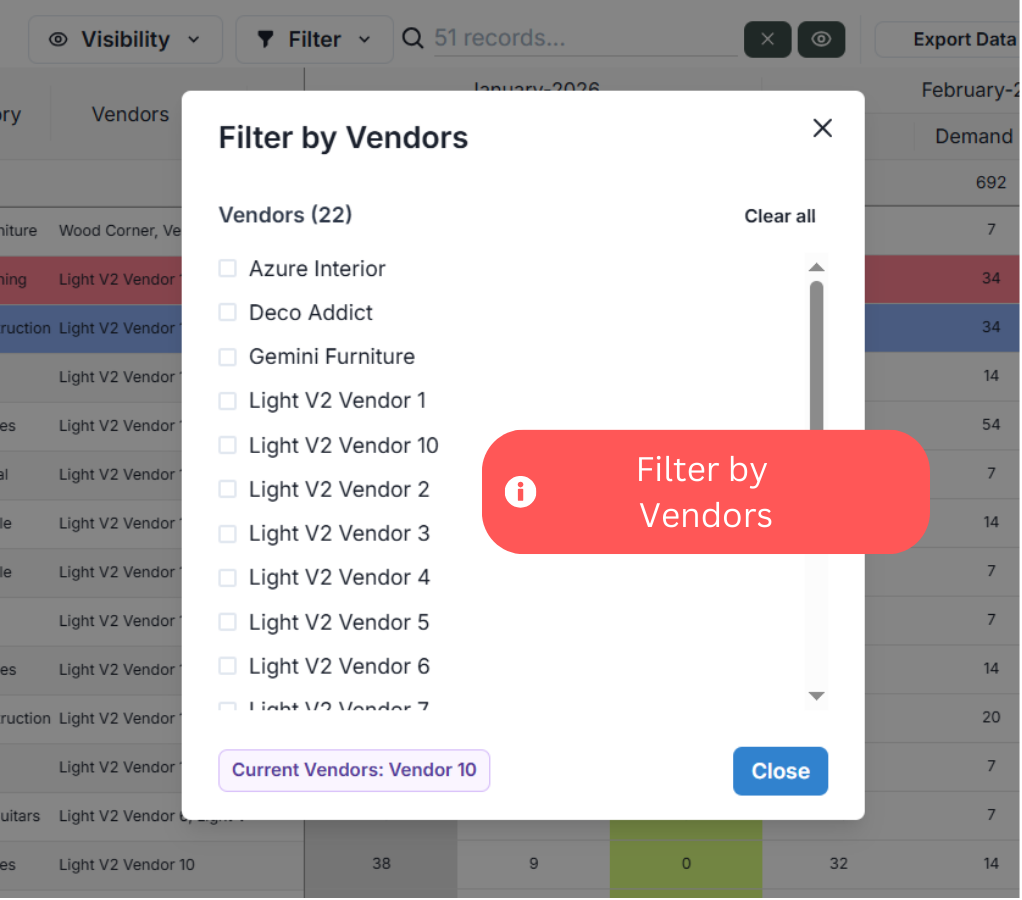
Filter by Vendors
Focus on products from selected vendors only.
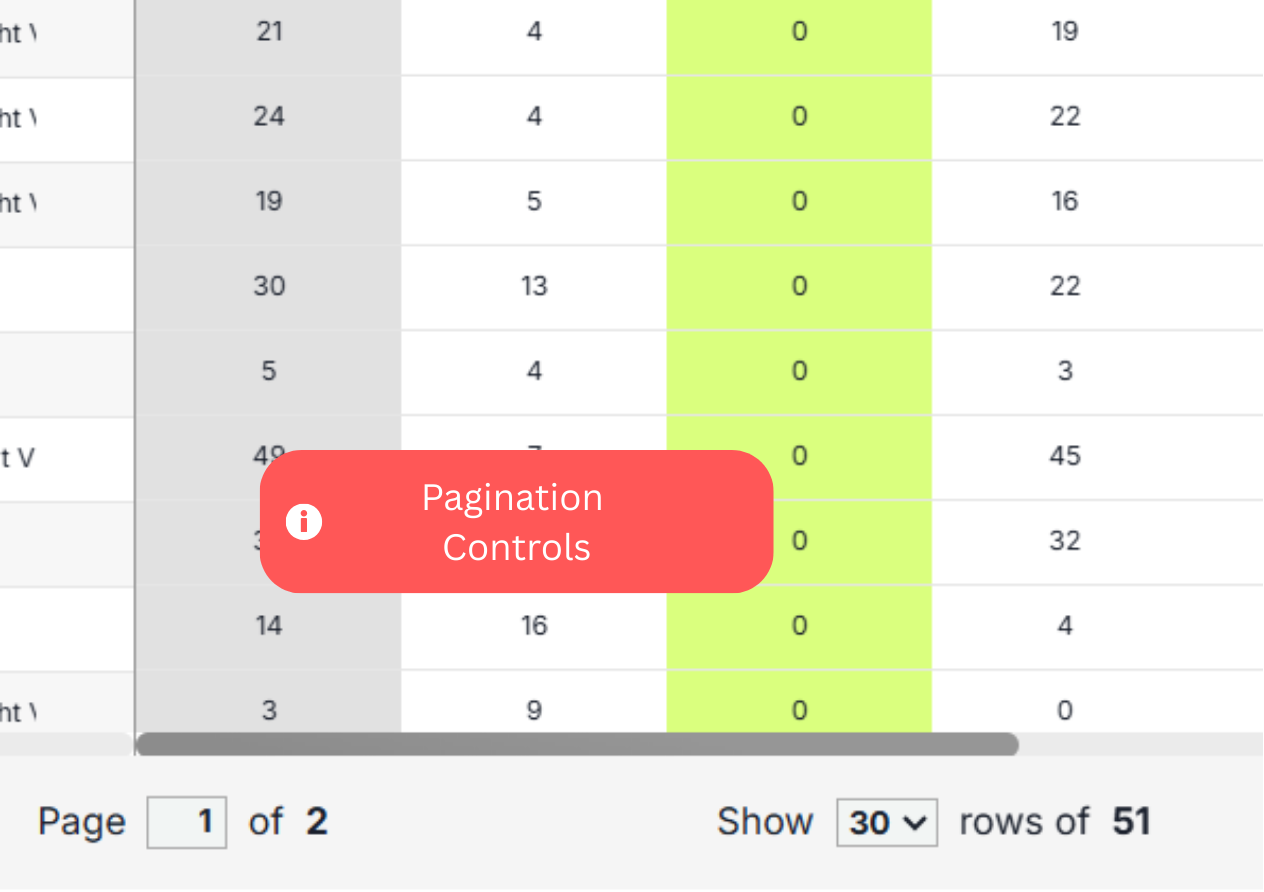
Pagination Controls
Navigate pages and control how many rows are shown per page.
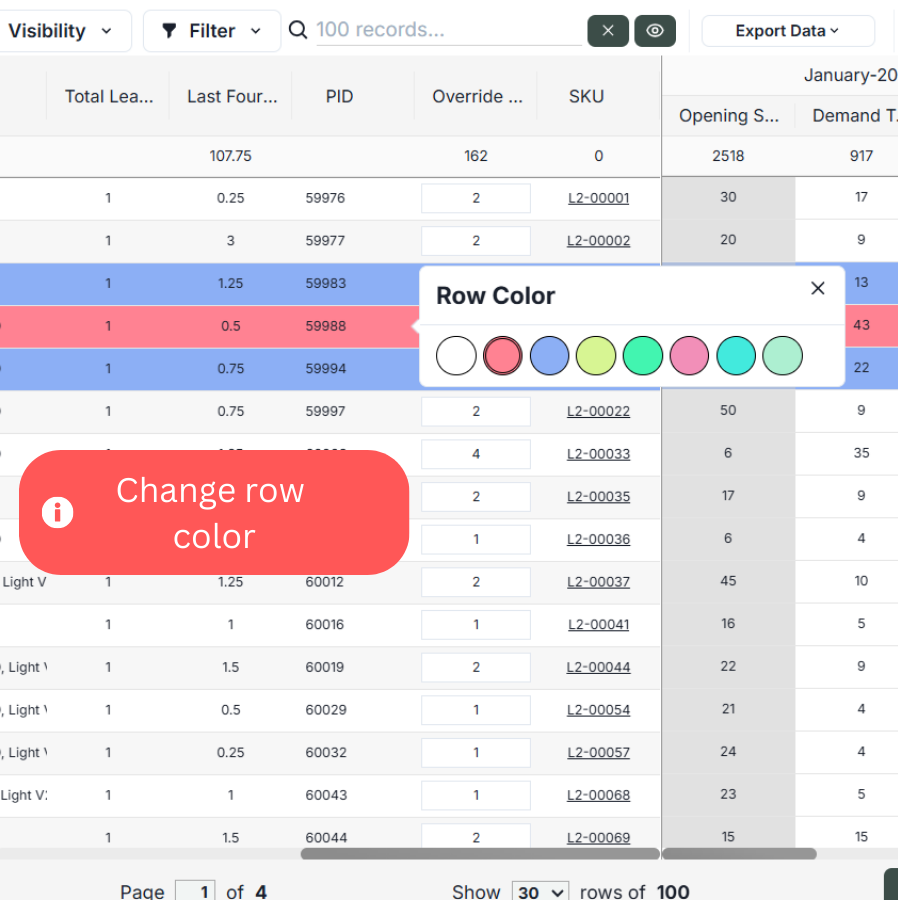
Change Row Color
You can change the row color to easily identify products.